■ Problem: When cloud governance policies live only in documents, resources that break them come to light only at quarterly reviews or audits.
■ Solution: OpsNow Policy Management shows compliance rates and results by policy as a report, organized by compliance standard such as HIPAA.
■ Result: Review results the lead used to compile in a spreadsheet, account by account, now show up on one screen as non-compliance counts and resource lists for each policy.
In quarterly review week, one cloud operations lead starts by opening a spreadsheet of accounts. They sign in to each account's console and check, one by one, for resources that break internal rules. Once there are more than twenty tabs open, they color cells in the spreadsheet to track how far they've gotten.
A non-compliant resource found this way may have been in that state for as long as three months.
Writing cloud governance policies isn't hard. Checking whether they're followed is. The more accounts and resources you have, the more there is to check, and because reviews depend on people's time, it's hard to run them more often.
It's tougher still for organizations facing audits. Compliance standards like HIPAA are split into detailed items, and for each one you have to match which resources in which accounts it applies to.
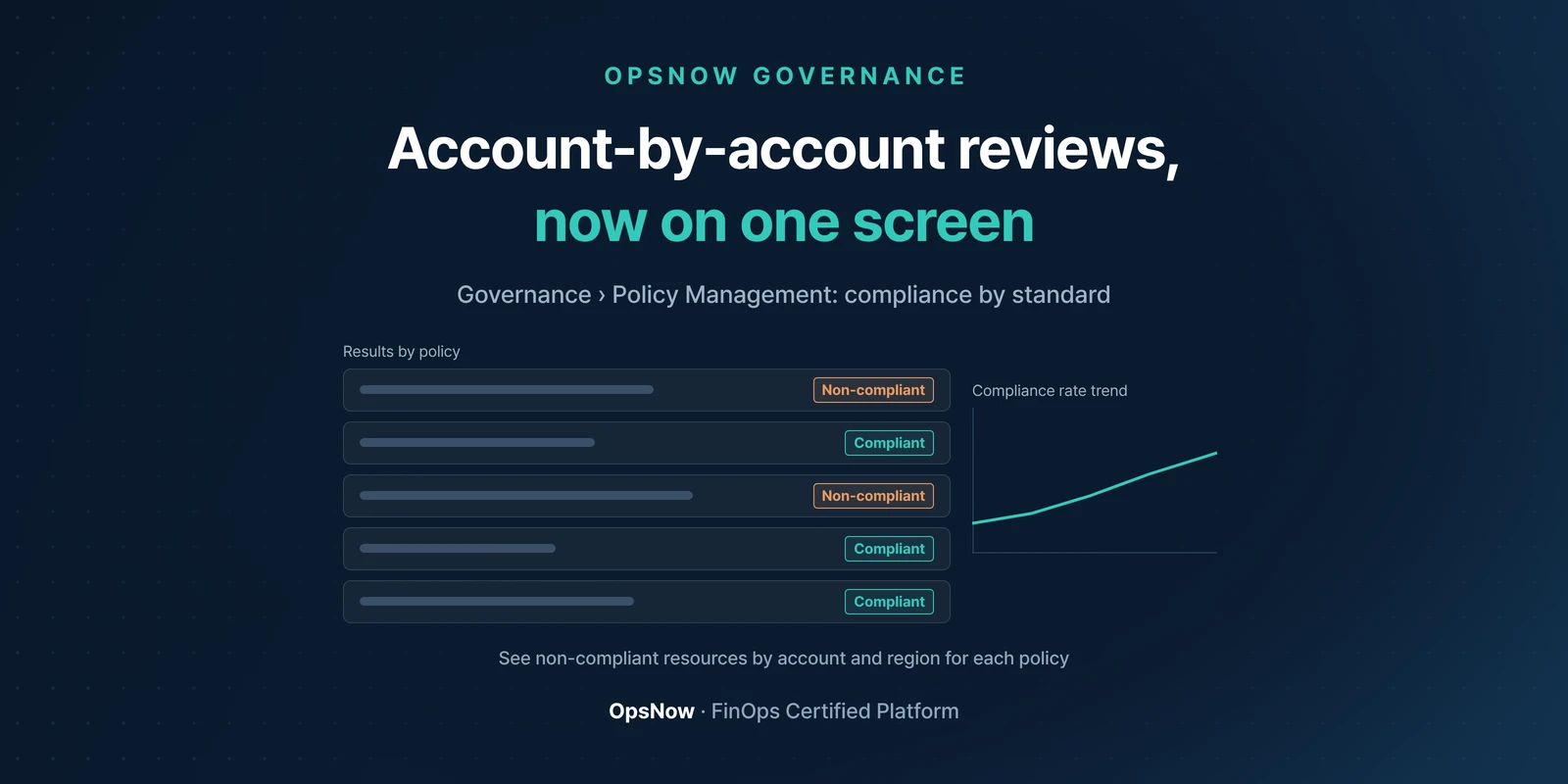
In OpsNow, go to Governance › Policy Management from the top menu. Pick a compliance standard in the Report tab, and the compliance rate and its trend appear first.
The detailed list below groups policies by the standard's items. Each policy shows its status along with counts of non-compliant, unprocessed and compliant resources. Open a policy, and you get a list of which cloud account and region each non-compliant resource is in.
Even with non-compliant resources listed, the list stays as it is if nobody owns the fixes. Start by assigning an owner to each policy: access permission items to the security lead, logging settings to the infrastructure lead, and so on.
The first time you open it, the compliance rate may be lower than you expect. Rather than trying to fix everything at once, it's more realistic to start with the policies that have the most non-compliant resources.
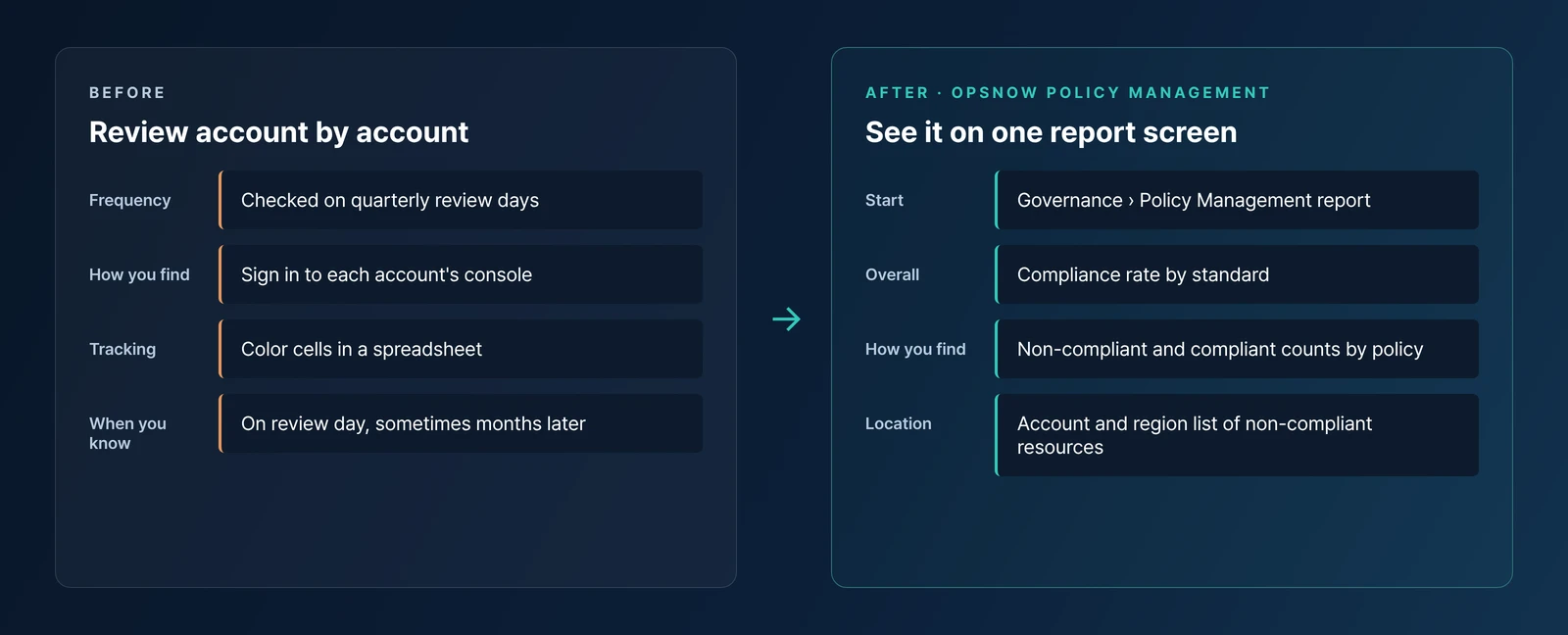
Before, the lead picked a review day, went through each account looking for non-compliant resources, and compiled the results in a spreadsheet to report. As accounts grew, so did the review period.
After, the same lead opens the Policy Management report first. They see overall status from the compliance rate, then open the policies with the most non-compliance to check the accounts and regions of those resources. Going through each account's console shrinks to one report screen.
The lead who used to open a spreadsheet in quarterly review week now starts from the Policy Management report. No more coloring cells to track progress.
▶ Talk to OpsNow about your cloud costs
In the Report tab under Governance › Policy Management in the top menu. Pick a compliance standard to see the compliance rate and results by policy.
Yes. Open a policy to see a list of non-compliant resources with their resource ID, cloud account and region.
Pick a date in the report to see the results from that day. The compliance rate is shown as a trend graph by date.

■ Problem: When cloud governance policies live only in documents, resources that break them come to light only at quarterly reviews or audits.
■ Solution: OpsNow Policy Management shows compliance rates and results by policy as a report, organized by compliance standard such as HIPAA.
■ Result: Review results the lead used to compile in a spreadsheet, account by account, now show up on one screen as non-compliance counts and resource lists for each policy.
In quarterly review week, one cloud operations lead starts by opening a spreadsheet of accounts. They sign in to each account's console and check, one by one, for resources that break internal rules. Once there are more than twenty tabs open, they color cells in the spreadsheet to track how far they've gotten.
A non-compliant resource found this way may have been in that state for as long as three months.
Writing cloud governance policies isn't hard. Checking whether they're followed is. The more accounts and resources you have, the more there is to check, and because reviews depend on people's time, it's hard to run them more often.
It's tougher still for organizations facing audits. Compliance standards like HIPAA are split into detailed items, and for each one you have to match which resources in which accounts it applies to.
In OpsNow, go to Governance › Policy Management from the top menu. Pick a compliance standard in the Report tab, and the compliance rate and its trend appear first.
The detailed list below groups policies by the standard's items. Each policy shows its status along with counts of non-compliant, unprocessed and compliant resources. Open a policy, and you get a list of which cloud account and region each non-compliant resource is in.
Even with non-compliant resources listed, the list stays as it is if nobody owns the fixes. Start by assigning an owner to each policy: access permission items to the security lead, logging settings to the infrastructure lead, and so on.
The first time you open it, the compliance rate may be lower than you expect. Rather than trying to fix everything at once, it's more realistic to start with the policies that have the most non-compliant resources.
Before, the lead picked a review day, went through each account looking for non-compliant resources, and compiled the results in a spreadsheet to report. As accounts grew, so did the review period.
After, the same lead opens the Policy Management report first. They see overall status from the compliance rate, then open the policies with the most non-compliance to check the accounts and regions of those resources. Going through each account's console shrinks to one report screen.

The lead who used to open a spreadsheet in quarterly review week now starts from the Policy Management report. No more coloring cells to track progress.
▶ Talk to OpsNow about your cloud costs
In the Report tab under Governance › Policy Management in the top menu. Pick a compliance standard to see the compliance rate and results by policy.
Yes. Open a policy to see a list of non-compliant resources with their resource ID, cloud account and region.
Pick a date in the report to see the results from that day. The compliance rate is shown as a trend graph by date.
■ Problem: When cloud governance policies live only in documents, resources that break them come to light only at quarterly reviews or audits.
■ Solution: OpsNow Policy Management shows compliance rates and results by policy as a report, organized by compliance standard such as HIPAA.
■ Result: Review results the lead used to compile in a spreadsheet, account by account, now show up on one screen as non-compliance counts and resource lists for each policy.
In quarterly review week, one cloud operations lead starts by opening a spreadsheet of accounts. They sign in to each account's console and check, one by one, for resources that break internal rules. Once there are more than twenty tabs open, they color cells in the spreadsheet to track how far they've gotten.
A non-compliant resource found this way may have been in that state for as long as three months.
Writing cloud governance policies isn't hard. Checking whether they're followed is. The more accounts and resources you have, the more there is to check, and because reviews depend on people's time, it's hard to run them more often.
It's tougher still for organizations facing audits. Compliance standards like HIPAA are split into detailed items, and for each one you have to match which resources in which accounts it applies to.
In OpsNow, go to Governance › Policy Management from the top menu. Pick a compliance standard in the Report tab, and the compliance rate and its trend appear first.
The detailed list below groups policies by the standard's items. Each policy shows its status along with counts of non-compliant, unprocessed and compliant resources. Open a policy, and you get a list of which cloud account and region each non-compliant resource is in.
Even with non-compliant resources listed, the list stays as it is if nobody owns the fixes. Start by assigning an owner to each policy: access permission items to the security lead, logging settings to the infrastructure lead, and so on.
The first time you open it, the compliance rate may be lower than you expect. Rather than trying to fix everything at once, it's more realistic to start with the policies that have the most non-compliant resources.
Before, the lead picked a review day, went through each account looking for non-compliant resources, and compiled the results in a spreadsheet to report. As accounts grew, so did the review period.
After, the same lead opens the Policy Management report first. They see overall status from the compliance rate, then open the policies with the most non-compliance to check the accounts and regions of those resources. Going through each account's console shrinks to one report screen.

The lead who used to open a spreadsheet in quarterly review week now starts from the Policy Management report. No more coloring cells to track progress.
▶ Talk to OpsNow about your cloud costs
In the Report tab under Governance › Policy Management in the top menu. Pick a compliance standard to see the compliance rate and results by policy.
Yes. Open a policy to see a list of non-compliant resources with their resource ID, cloud account and region.
Pick a date in the report to see the results from that day. The compliance rate is shown as a trend graph by date.


■ Problem: When cloud governance policies live only in documents, resources that break them come to light only at quarterly reviews or audits.
■ Solution: OpsNow Policy Management shows compliance rates and results by policy as a report, organized by compliance standard such as HIPAA.
■ Result: Review results the lead used to compile in a spreadsheet, account by account, now show up on one screen as non-compliance counts and resource lists for each policy.
In quarterly review week, one cloud operations lead starts by opening a spreadsheet of accounts. They sign in to each account's console and check, one by one, for resources that break internal rules. Once there are more than twenty tabs open, they color cells in the spreadsheet to track how far they've gotten.
A non-compliant resource found this way may have been in that state for as long as three months.
Writing cloud governance policies isn't hard. Checking whether they're followed is. The more accounts and resources you have, the more there is to check, and because reviews depend on people's time, it's hard to run them more often.
It's tougher still for organizations facing audits. Compliance standards like HIPAA are split into detailed items, and for each one you have to match which resources in which accounts it applies to.
In OpsNow, go to Governance › Policy Management from the top menu. Pick a compliance standard in the Report tab, and the compliance rate and its trend appear first.
The detailed list below groups policies by the standard's items. Each policy shows its status along with counts of non-compliant, unprocessed and compliant resources. Open a policy, and you get a list of which cloud account and region each non-compliant resource is in.
Even with non-compliant resources listed, the list stays as it is if nobody owns the fixes. Start by assigning an owner to each policy: access permission items to the security lead, logging settings to the infrastructure lead, and so on.
The first time you open it, the compliance rate may be lower than you expect. Rather than trying to fix everything at once, it's more realistic to start with the policies that have the most non-compliant resources.
Before, the lead picked a review day, went through each account looking for non-compliant resources, and compiled the results in a spreadsheet to report. As accounts grew, so did the review period.
After, the same lead opens the Policy Management report first. They see overall status from the compliance rate, then open the policies with the most non-compliance to check the accounts and regions of those resources. Going through each account's console shrinks to one report screen.

The lead who used to open a spreadsheet in quarterly review week now starts from the Policy Management report. No more coloring cells to track progress.
▶ Talk to OpsNow about your cloud costs
In the Report tab under Governance › Policy Management in the top menu. Pick a compliance standard to see the compliance rate and results by policy.
Yes. Open a policy to see a list of non-compliant resources with their resource ID, cloud account and region.
Pick a date in the report to see the results from that day. The compliance rate is shown as a trend graph by date.

■ Problem: When cloud governance policies live only in documents, resources that break them come to light only at quarterly reviews or audits.
■ Solution: OpsNow Policy Management shows compliance rates and results by policy as a report, organized by compliance standard such as HIPAA.
■ Result: Review results the lead used to compile in a spreadsheet, account by account, now show up on one screen as non-compliance counts and resource lists for each policy.
In quarterly review week, one cloud operations lead starts by opening a spreadsheet of accounts. They sign in to each account's console and check, one by one, for resources that break internal rules. Once there are more than twenty tabs open, they color cells in the spreadsheet to track how far they've gotten.
A non-compliant resource found this way may have been in that state for as long as three months.
Writing cloud governance policies isn't hard. Checking whether they're followed is. The more accounts and resources you have, the more there is to check, and because reviews depend on people's time, it's hard to run them more often.
It's tougher still for organizations facing audits. Compliance standards like HIPAA are split into detailed items, and for each one you have to match which resources in which accounts it applies to.
In OpsNow, go to Governance › Policy Management from the top menu. Pick a compliance standard in the Report tab, and the compliance rate and its trend appear first.
The detailed list below groups policies by the standard's items. Each policy shows its status along with counts of non-compliant, unprocessed and compliant resources. Open a policy, and you get a list of which cloud account and region each non-compliant resource is in.
Even with non-compliant resources listed, the list stays as it is if nobody owns the fixes. Start by assigning an owner to each policy: access permission items to the security lead, logging settings to the infrastructure lead, and so on.
The first time you open it, the compliance rate may be lower than you expect. Rather than trying to fix everything at once, it's more realistic to start with the policies that have the most non-compliant resources.
Before, the lead picked a review day, went through each account looking for non-compliant resources, and compiled the results in a spreadsheet to report. As accounts grew, so did the review period.
After, the same lead opens the Policy Management report first. They see overall status from the compliance rate, then open the policies with the most non-compliance to check the accounts and regions of those resources. Going through each account's console shrinks to one report screen.

The lead who used to open a spreadsheet in quarterly review week now starts from the Policy Management report. No more coloring cells to track progress.
▶ Talk to OpsNow about your cloud costs
In the Report tab under Governance › Policy Management in the top menu. Pick a compliance standard to see the compliance rate and results by policy.
Yes. Open a policy to see a list of non-compliant resources with their resource ID, cloud account and region.
Pick a date in the report to see the results from that day. The compliance rate is shown as a trend graph by date.

■ Problem: When cloud governance policies live only in documents, resources that break them come to light only at quarterly reviews or audits.
■ Solution: OpsNow Policy Management shows compliance rates and results by policy as a report, organized by compliance standard such as HIPAA.
■ Result: Review results the lead used to compile in a spreadsheet, account by account, now show up on one screen as non-compliance counts and resource lists for each policy.
In quarterly review week, one cloud operations lead starts by opening a spreadsheet of accounts. They sign in to each account's console and check, one by one, for resources that break internal rules. Once there are more than twenty tabs open, they color cells in the spreadsheet to track how far they've gotten.
A non-compliant resource found this way may have been in that state for as long as three months.
Writing cloud governance policies isn't hard. Checking whether they're followed is. The more accounts and resources you have, the more there is to check, and because reviews depend on people's time, it's hard to run them more often.
It's tougher still for organizations facing audits. Compliance standards like HIPAA are split into detailed items, and for each one you have to match which resources in which accounts it applies to.
In OpsNow, go to Governance › Policy Management from the top menu. Pick a compliance standard in the Report tab, and the compliance rate and its trend appear first.
The detailed list below groups policies by the standard's items. Each policy shows its status along with counts of non-compliant, unprocessed and compliant resources. Open a policy, and you get a list of which cloud account and region each non-compliant resource is in.
Even with non-compliant resources listed, the list stays as it is if nobody owns the fixes. Start by assigning an owner to each policy: access permission items to the security lead, logging settings to the infrastructure lead, and so on.
The first time you open it, the compliance rate may be lower than you expect. Rather than trying to fix everything at once, it's more realistic to start with the policies that have the most non-compliant resources.
Before, the lead picked a review day, went through each account looking for non-compliant resources, and compiled the results in a spreadsheet to report. As accounts grew, so did the review period.
After, the same lead opens the Policy Management report first. They see overall status from the compliance rate, then open the policies with the most non-compliance to check the accounts and regions of those resources. Going through each account's console shrinks to one report screen.

The lead who used to open a spreadsheet in quarterly review week now starts from the Policy Management report. No more coloring cells to track progress.
▶ Talk to OpsNow about your cloud costs
In the Report tab under Governance › Policy Management in the top menu. Pick a compliance standard to see the compliance rate and results by policy.
Yes. Open a policy to see a list of non-compliant resources with their resource ID, cloud account and region.
Pick a date in the report to see the results from that day. The compliance rate is shown as a trend graph by date.